No products in the basket.
How to Update Your VIOFO Dash Cam Firmware Over the Air (OTA) with the App
28 January 2026
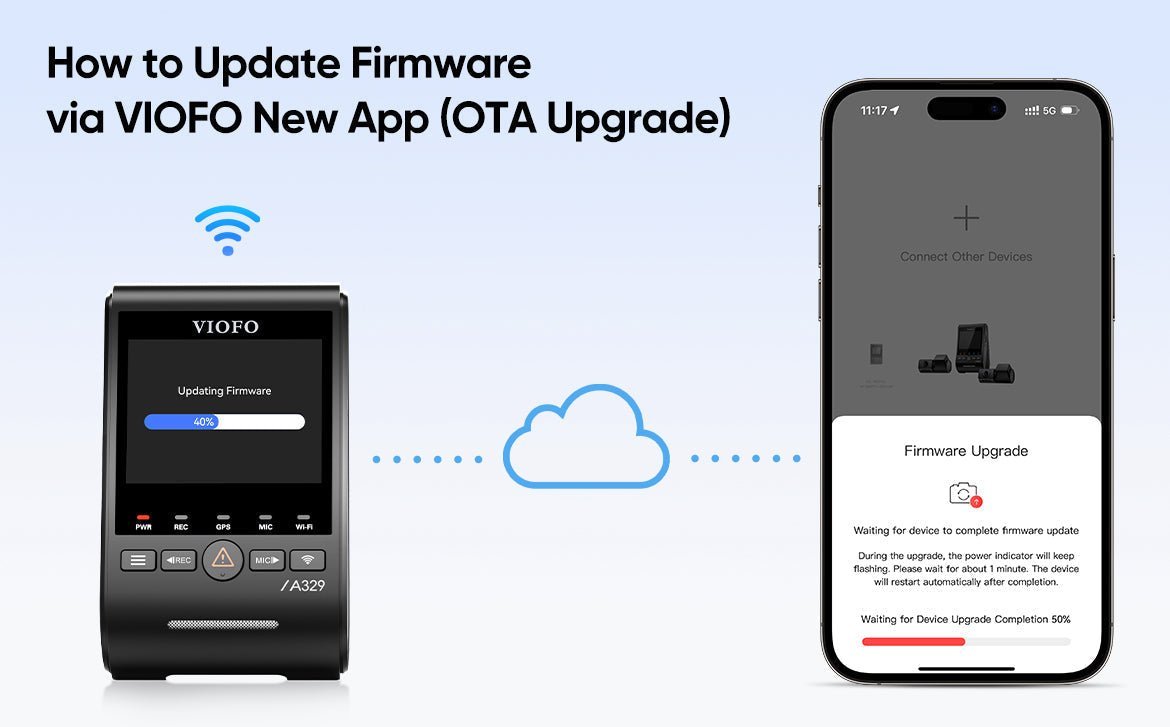
Keeping your dash cam’s firmware up to date is the easiest way to get the best performance, better stability and new features. The good news is that it’s now a lot less fiddly: VIOFO dash cams that support it can be updated over the air (OTA) straight from the new VIOFO Dashcam App, with no files to download, unzip or copy across.
Why update over the air?
Before OTA, updating meant putting the firmware file on a microSD card or transferring it to the camera with a USB data cable. With OTA, it’s far simpler:
- No need to take out the memory card or plug in a USB cable
- No extracting or manually copying files
- Quicker and easier to follow
- New firmware versions are detected automatically
- The app guides you through every step
Once the app sends the firmware file across, the dash cam takes care of the rest.
Before you start
- Your phone needs mobile data (a SIM card) so the app can download the firmware package.
- Make sure the memory card is inserted and the camera has power.
- Install the VIOFO Dashcam App and make sure it’s up to date.
- Turn on the dash cam’s Wi-Fi.
- If you have an SSD connected to the dash cam, disconnect it before updating.
Step-by-step OTA update
1. Power on the dash cam and turn on Wi-Fi
Switch on the camera’s Wi-Fi so your phone can connect directly to it.
2. Open the VIOFO Dashcam App
Launch the app and select your dash cam model.

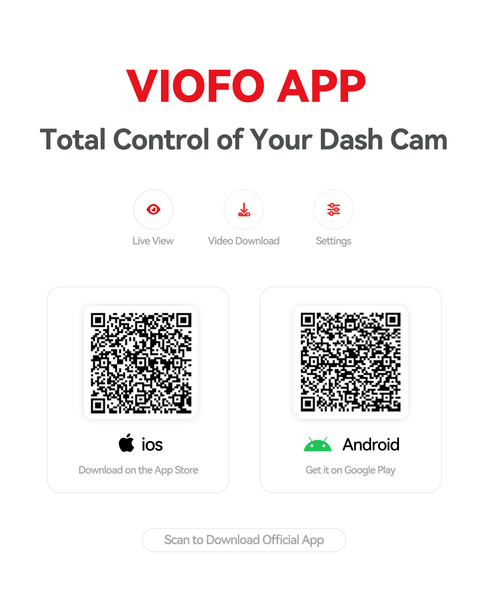
Get the app: App Store (iPhone) or Google Play (Android).
3. Connect your phone to the dash cam’s Wi-Fi
Go to your phone’s Wi-Fi settings and join the dash cam’s network (it will be named 5G_VIOFO_<device name>_xxxx; the default password is 12345678).

4. The app spots new firmware automatically
If there’s a newer firmware version for your model, a pop-up on the home screen will prompt you to download it.

5. Download the firmware
Tap Download. The app fetches the new firmware using your mobile data.

6. The update starts automatically
Once downloaded, the app pushes the firmware to the dash cam. Don’t switch the camera off during this stage.

7. Wait for it to finish
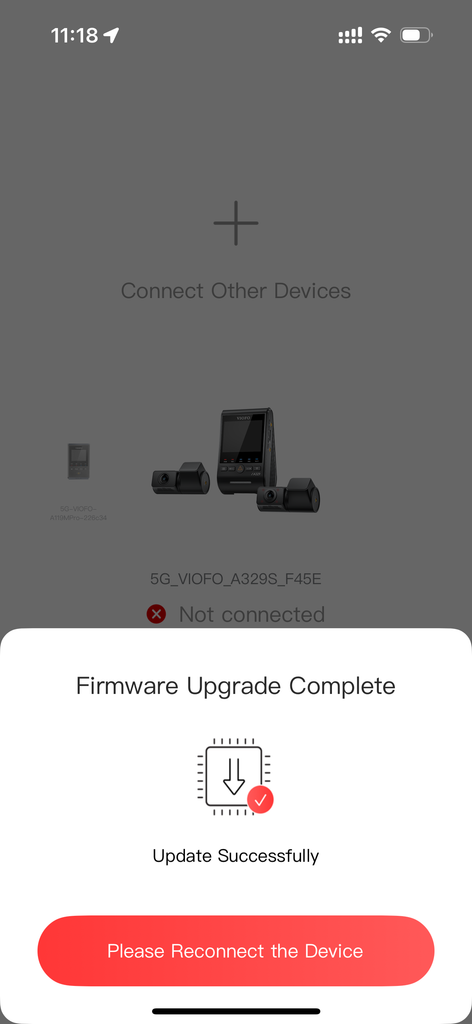
The dash cam installs the update and restarts by itself when it’s done.

8. Restart and you’re good to go
After the reboot, your dash cam is running the latest firmware.
Final thoughts
OTA updates make keeping your dash cam current quicker and easier than ever. A few taps in the VIOFO Dashcam App and you’re done, with no faffing about with file transfers, so your camera keeps performing at its best with the latest fixes and features.