No products in the basket.
VIOFO A329S Series V2.0 Firmware: 15 New Features Explained
17 October 2025

The VIOFO A329S series V2.0 firmware brings 15 major new features to improve your dash cam’s performance and usability. Here’s a detailed look at what’s new, and how to update. It applies to the A329S, A329T, A329TC and A329WW.
1. Improved Low Power Impact Detection and Hybrid Parking Mode settings
The Low Power Impact Detection and Hybrid Parking Mode options are now always shown, whatever your power source.
- When powered by a car charger, or when the hardwire cable or car charger is plugged into the side port of the dash cam, the Parking Mode sub-options still list Low Power Impact Detection and Hybrid Parking Mode.
- If you select either of them, the dash cam shows a prompt: To enable this parking mode, please use the VIOFO HK4 or HK6 Hardwire cable and power the camera from GPS mount.
- The prompt stays on screen until you press any of the five main buttons.
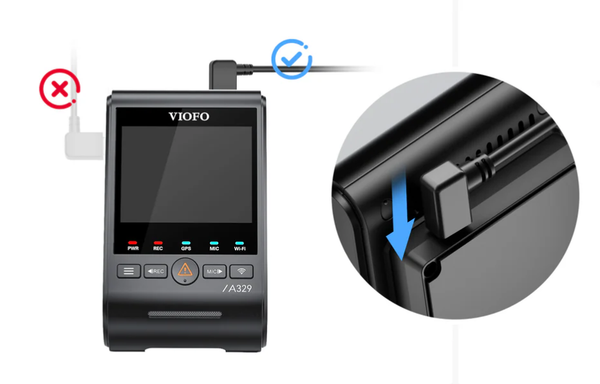
Please make sure the hardwire cable is connected to the power port on top of the GPS mount. You’ll need an HK4 or HK6 hardwire kit.
Watch it in action: Low Power Impact Detection and Hybrid Parking Mode settings (YouTube)
2. Parking Impact Notification
A new Parking Impact Notification setting works across all parking modes. It’s on by default and can be turned off.

- If the G-sensor is triggered and a file is locked while parked, the dash cam alerts you with a text prompt and three beeps when it leaves parking mode and returns to normal recording.
- Files triggered within 1 minute of switching between parking and normal recording are ignored, which cuts false alerts from doors closing.
- The alert stays on screen for 30 seconds, or you can close it by pressing the Menu/Lock button.
- It doesn’t affect recording: the dash cam keeps recording throughout.
Watch it in action: Parking Impact Notification (YouTube)

3. Long-press Menu button
- Long-press for 2 seconds to open the menu, or 6 seconds to power off.
- A short press now takes a photo, along with the prompt: Please stop recording first or long-press the menu button 2 seconds before you enter the menu.
- The prompt disappears after 5 seconds, or press the Menu button to close it.
- When you long-press to power off, the dash cam enters the menu first and then shuts down.
Watch it in action: Long-press Menu button (YouTube)
4. More Bluetooth remote button functions
The Bluetooth remote now has three new options:
- Turn rear camera on or off
- Turn interior camera on or off

Watch it in action: Turning cameras on and off from the remote (YouTube)
- Wi-Fi Station Mode on or off directly from the remote.
If you turn Wi-Fi or Station Mode off manually (by dash cam button, voice control or remote), it stays off after a reboot. If you turn it on manually, it stays on after a reboot.

Watch it in action: Wi-Fi Station Mode from the remote (YouTube)
5. Photos protected when storage is full
When the memory card or SSD is full, video keeps looping over older footage, but photos are no longer overwritten. Your snapshots stay safe even when space runs low.
6. Firmware upgrade while powered on
Insert a memory card with the new firmware while the dash cam is on, and it will automatically reboot and update (same model only).
Watch it in action: Firmware upgrade while powered on (YouTube)
7. Parking mode options reordered and expanded
- Parking mode settings have been reorganised for easier access.

- Hybrid parking recording now offers more time-lapse options: super night vision (SNV), 1fps, 2fps, 3fps, 5fps and 10fps.

8. Hybrid parking storage update
Hybrid parking recording can now save pre-impact footage to the external SSD when video storage is set to external SSD.
- Video Storage set to SD card and Parking Files Storage set to SD card: pre-impact hybrid parking videos are saved to the SD card.
- Video Storage set to external SSD and Parking Files Storage set to SD card: pre-impact hybrid parking videos are saved to the external SSD instead.
Watch it in action: Hybrid parking storage (YouTube)
9. Back up impact parking videos
You can now back up impact-triggered recordings made in Low Power Impact Detection parking mode (backup speed depends on your card or SSD, typically around 50MB/s). A new menu toggle turns this on or off.

- On: after recording an impact video, the dash cam backs it up and shows a backup prompt before going to sleep.
- Off: the dash cam skips the backup and goes straight to sleep.
Watch it in action: Backing up impact parking videos (YouTube)
10. Vehicle voltage stamp
A new option controls the voltage stamp on all channels, videos and photos alike, with a single switch.

11. GeoFencing

- Set up to three GeoFencing zones. Each one is saved from the camera’s current GPS position as a 50 m circle. When your vehicle is inside a zone, the dash cam powers off instead of entering parking mode.
- If the GPS signal is weak or lost, the dash cam defaults to parking mode monitoring.
Note: GeoFencing may not work where satellite signal is limited or absent, such as multi-storey or underground car parks.
12. Voltage display in the new app
The updated VIOFO app shows real-time voltage from your HK6 hardwire cable.
- Each connection checks the HK6 data so readings are accurate.
- If the app isn’t connected to the dash cam, it shows the voltage from the last recognised HK6.
- To pair a new HK6, simply reconnect to the dash cam’s Wi-Fi to refresh the reading.
Watch it in action: Voltage display in the VIOFO app (YouTube)
How to download the new VIOFO app (beta)
Android: download the VIOFO app from Google Play

iPhone: download the VIOFO app from the App Store

13. Critical alerts only
A new Only Critical Alerts toggle has been added to the voice notification options.

When it’s on, the dash cam only announces critical issues, such as:
- An impact was detected during parking recording.
- Memory card error, please format the card.
- Memory card format failed.
- Please insert a memory card.
Watch it in action: Only Critical Alerts (YouTube)
14. New resolution options for the A329T
The A329T telephoto edition gains two extra 16:9 resolution options:
- 3CH: 4K 21:9 + 2K 16:9 + 2K 16:9

- 2CH (front + telephoto): 4KP60 21:9 + 2K 16:9, and 4KP30 21:9 + 2K 16:9

15. Export settings
A new export settings option makes it easier to manage your configuration.

When it’s on, removing the SD card automatically creates a configuration file called viofo_config in the card’s root folder. Open it with the configuration tool to see all of the dash cam’s current settings, including menu options and chosen parameters.

How to update to V2.0 firmware
Download the firmware file for your model:
- A329S: FWA329S.bin
- A329T: FWA329T.bin
- A329TC: FWA329TC.bin
- A329WW: FWA329WW.bin
Copy the file to the root of your memory card and insert it into the dash cam; thanks to feature 6, it will reboot and update automatically.
Final thoughts
The V2.0 firmware is a big step forward in convenience, reliability and smart features for A329S series owners. VIOFO welcomes feedback to fine-tune these updates. If you have questions, contact our UK team.